About 5 minutes

How to sign up for the ECRXN scanner

Follow these steps to create your East Coast Receiver Network account and start listening, on a computer or on your phone. The screenshots are taken from the real sign-up page at thinline.ecrxn.com, and the green outline shows what to press.

Sign up on the web

Works in Chrome, Edge, Safari and Firefox on a computer, tablet or phone. We recommend creating your account on the web, even if you plan to listen in the app.

1 Step one

Open the scanner and select Sign Up

In your web browser, go to thinline.ecrxn.com. You'll see the East Coast Receiver Network sign-in box with three tabs: Sign In, Sign Up and Manage Group.

New listeners select the Sign Up tab.

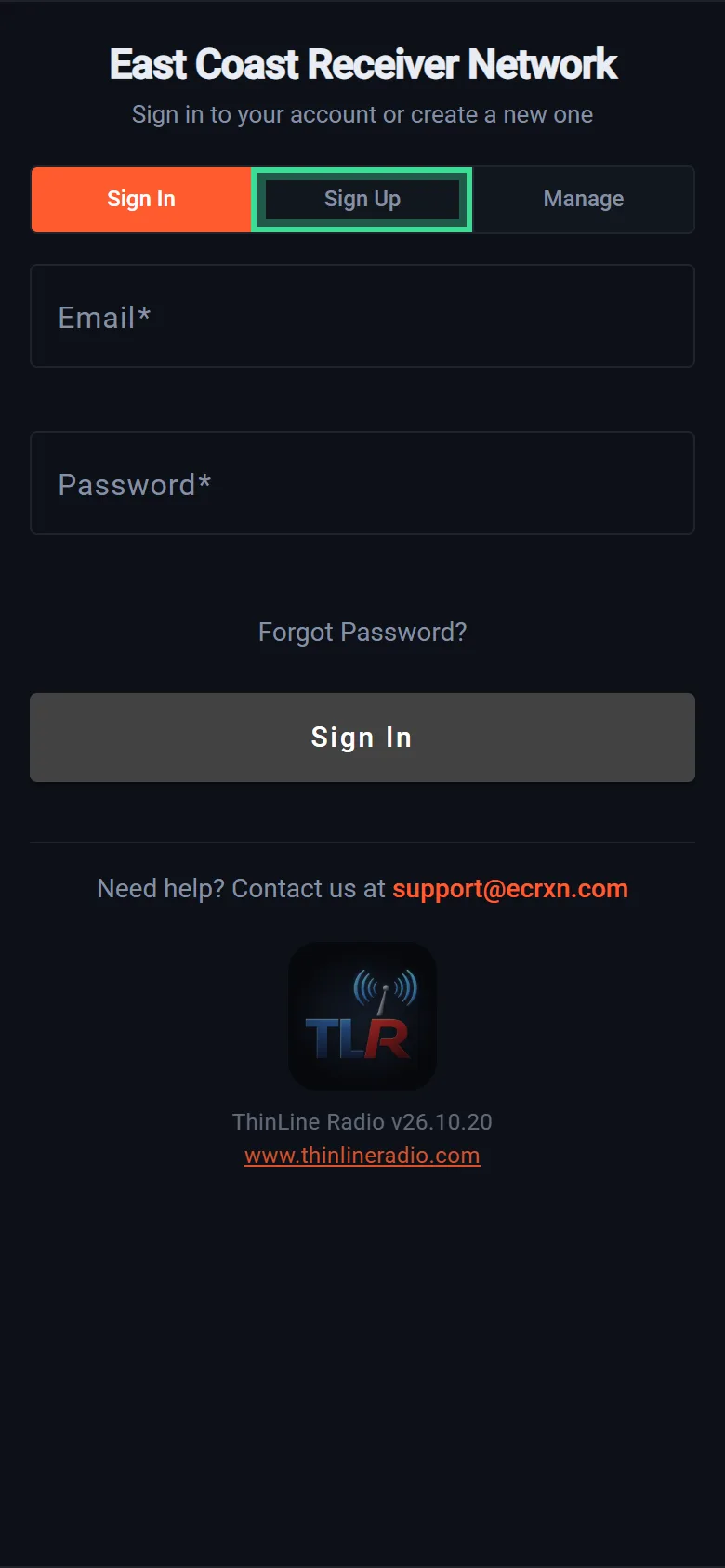
On a phone it looks the same, just narrower. Bookmark the page or add it to your home screen so you can get back quickly.
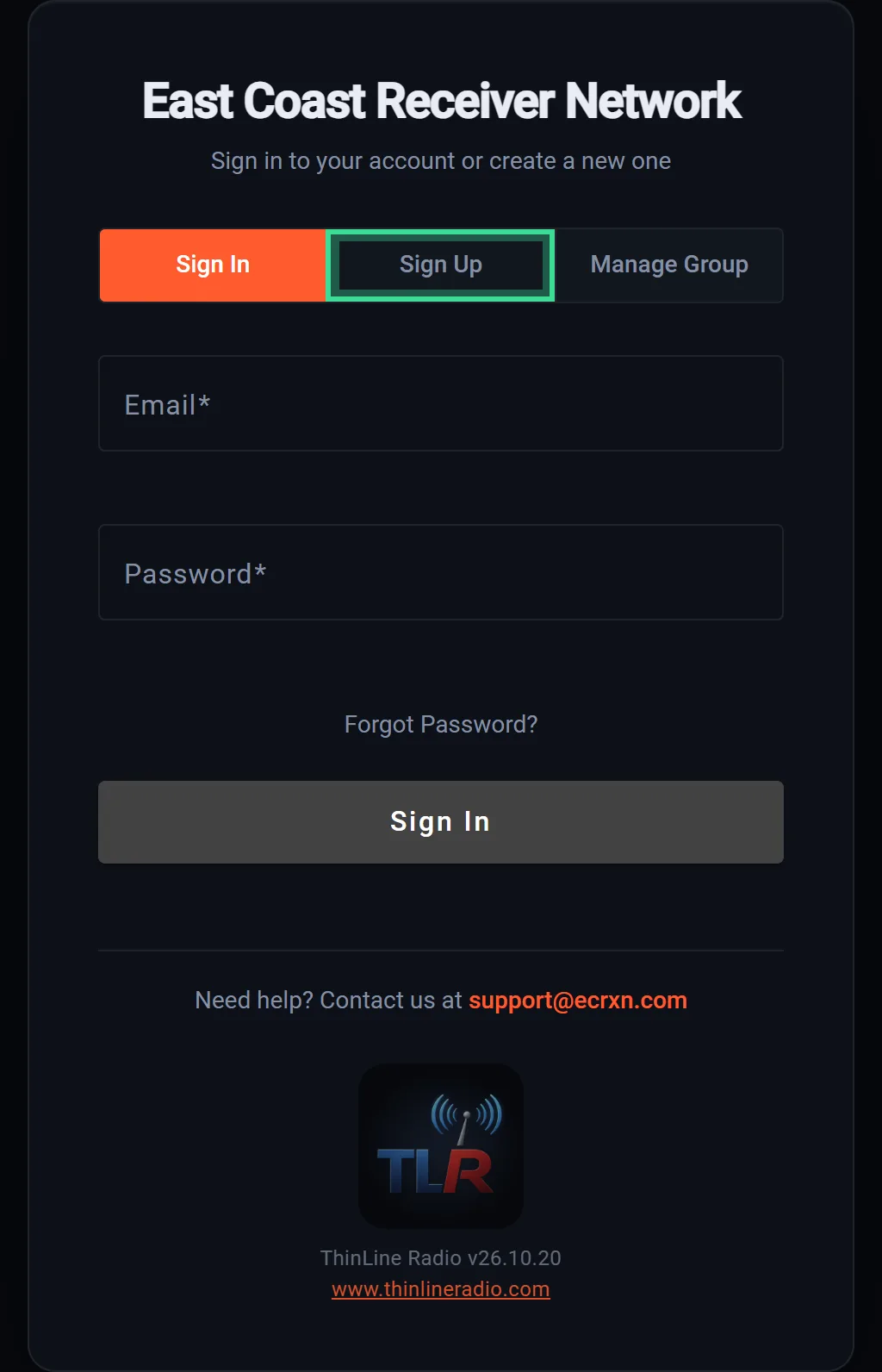
ECRXN sign-in page at thinline.ecrxn.com with the Sign Up tab highlighted
ScreenshotComputer
The ECRXN sign-in page on a phone with the Sign Up tab highlighted
ScreenshotPhone browser
2 Step two

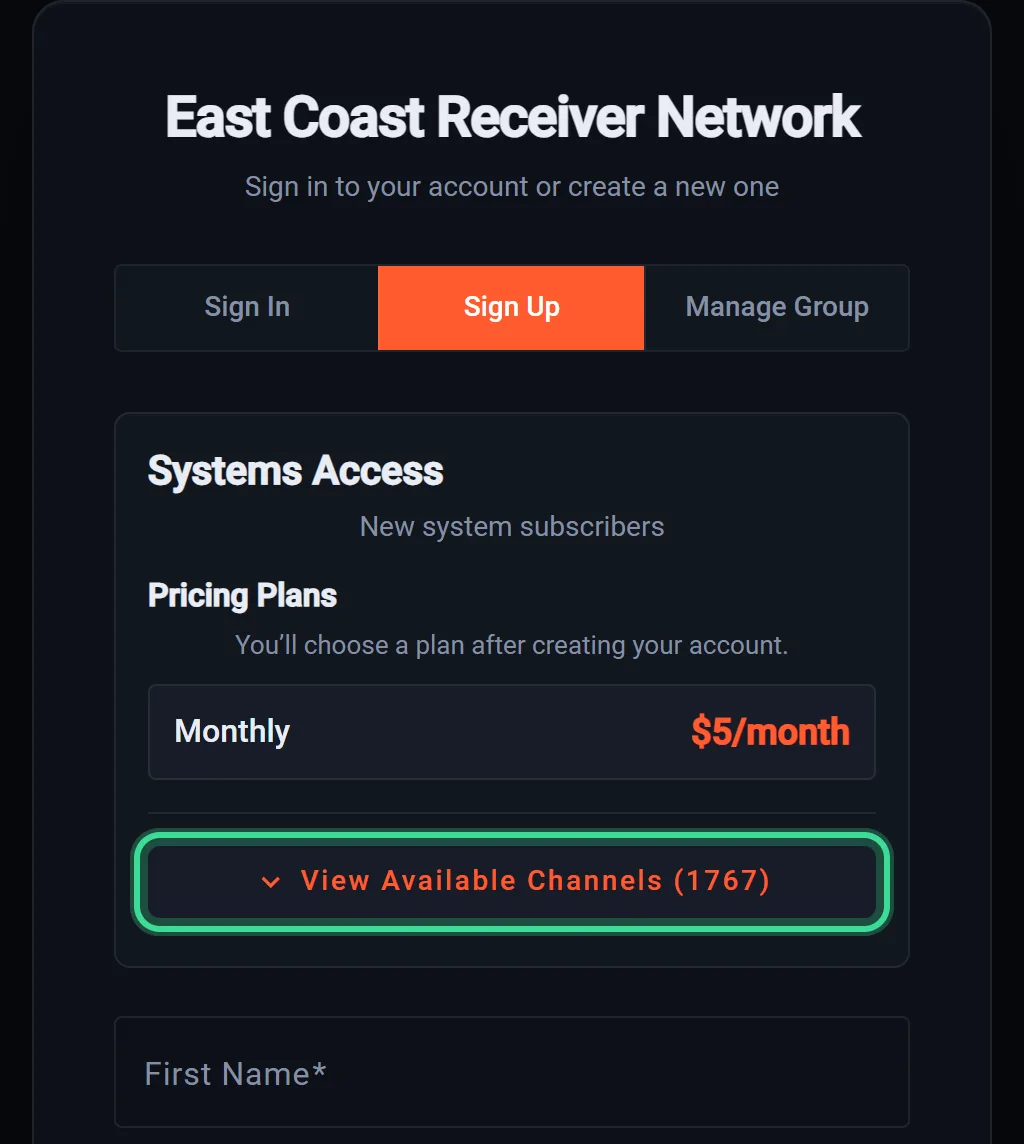
Check the price and available channels

At the top of the Sign Up tab you'll see Systems Access and the pricing plan:

$5per month · Monthly plan

You'll choose your plan after you create your account.

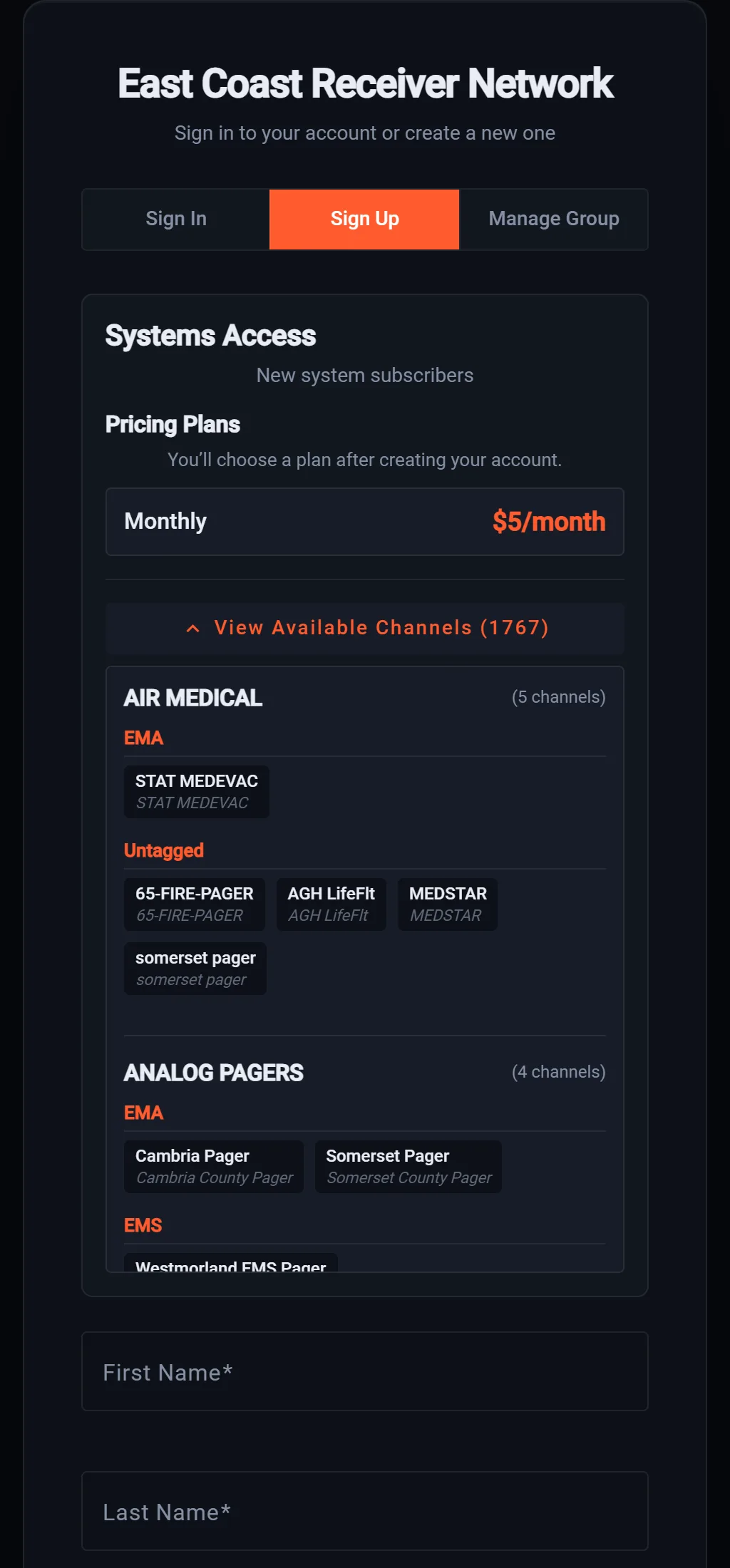
Want to see what you can hear first? Select View Available Channels (1767) to open the full list of systems and channels, such as Air Medical, Blair County, Baltimore City and Cambria County.

Sign Up tab showing Systems Access, the $5/month plan and the View Available Channels button
ScreenshotPricing
The expanded list of available channels grouped by system
ScreenshotChannel list
3 Step three

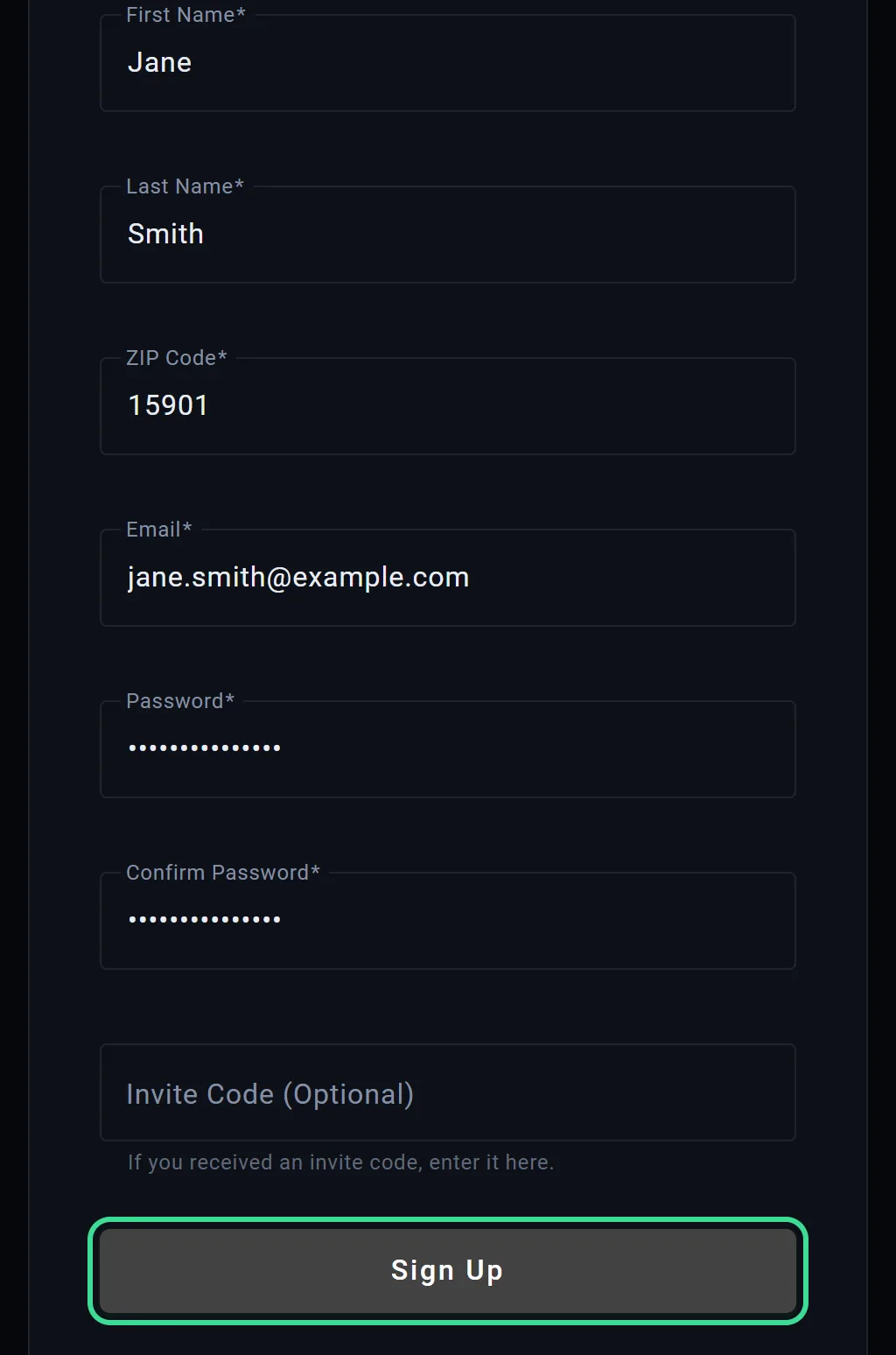
Fill in your details

Scroll down and complete the form:

  • First Name and Last Name
  • ZIP Code
  • Email. Use one you can check right now.
  • Password and Confirm Password. Your password must include a special character such as ! @ # $.
  • Invite Code (Optional). Only fill this in if someone gave you a code.

Then select Sign Up.

Seeing a red message like "Missing: special char" under the password? Add a symbol such as ! or # to your password.

Completed sign-up form with example details and the Sign Up button highlighted
ScreenshotExample details filled in. Select Sign Up.
4 Step four

Choose your plan

Once your account is created, you'll be asked to choose a plan. Select the Monthly, $5/month plan and complete checkout.

If you're asked to verify your email, check your inbox for a message from the East Coast Receiver Network and follow the link or code inside.

No email after a few minutes? Check your Spam, Junk or Promotions folder. Still nothing? Email support@ecrxn.com.

thinline.ecrxn.com
Choose your plan
East Coast Receiver Network
Monthly
All available ECRXN channels
$5/month
Continue to checkout

Secure payment · Cancel any time

IllustrationThis screen appears after sign-up, so it can't be captured from the public page.
5 Step five

Sign in

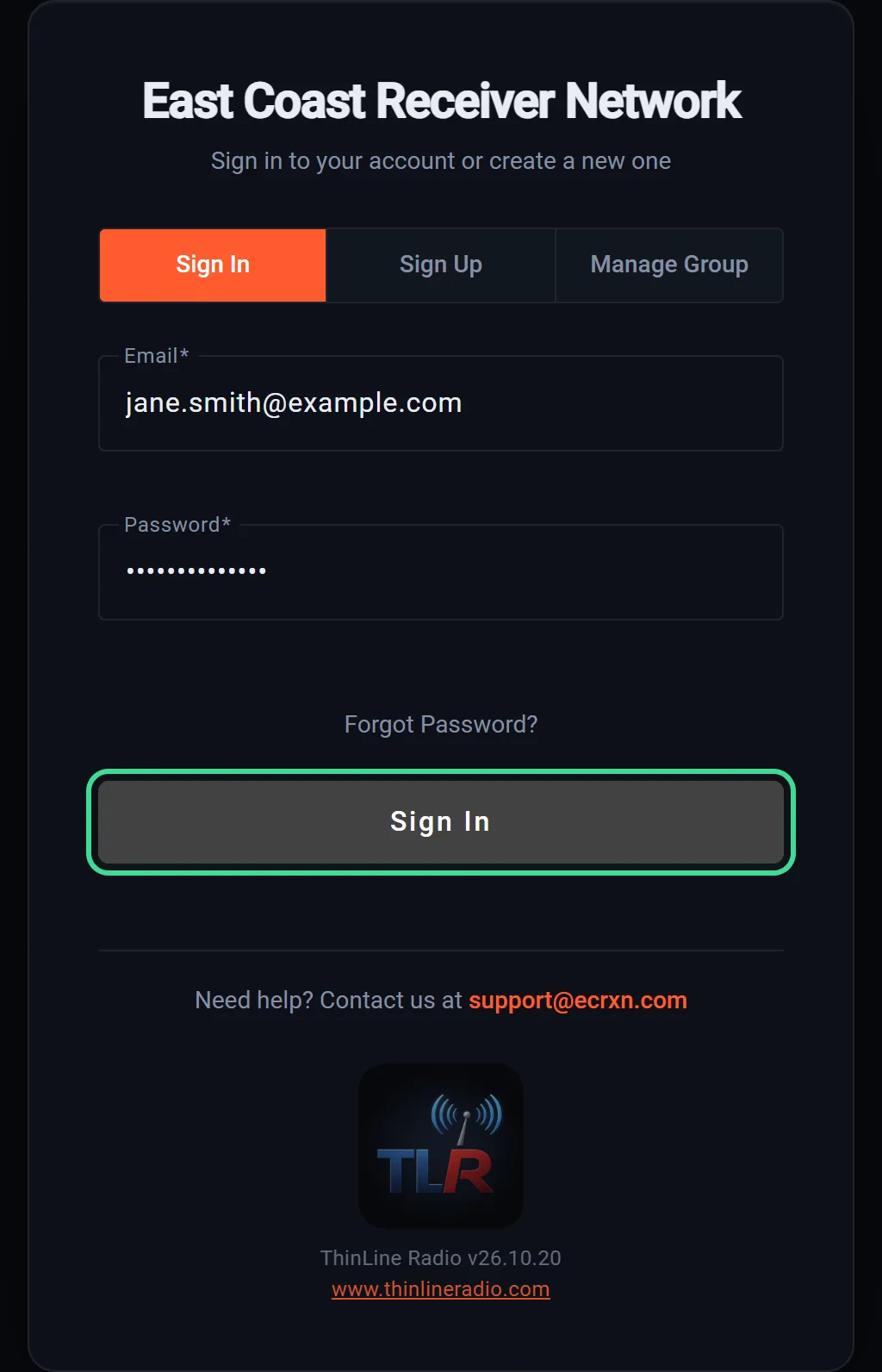
Go back to thinline.ecrxn.com. On the Sign In tab, enter your email and password, then select Sign In.

Forgot your password? See resetting your password below.

Sign In tab with an example email and password and the Sign In button highlighted
ScreenshotEnter your email and password, then select Sign In.
6 Step six

Choose your channels and press LIVE

Open the channel selector and turn on the systems and talkgroups you want, such as your county's fire and EMS dispatch. Your choices are saved for next time.

Press LIVE to hear calls as they happen. Use HOLD to stay on one talkgroup, SKIP to move past a call and REPLAY to hear the last call again.

No sound? Most browsers won't play audio until you click or tap the page once. Also check that the tab and your device aren't muted.

ECRXN · ThinLine Live
SYS: CAMBRIA COUNTYLIVE
FIRE DISPATCH
LIVEHOLDSKIPREPLAY
IllustrationThe scanner controls after you sign in.
? If you need it

Reset a forgotten password

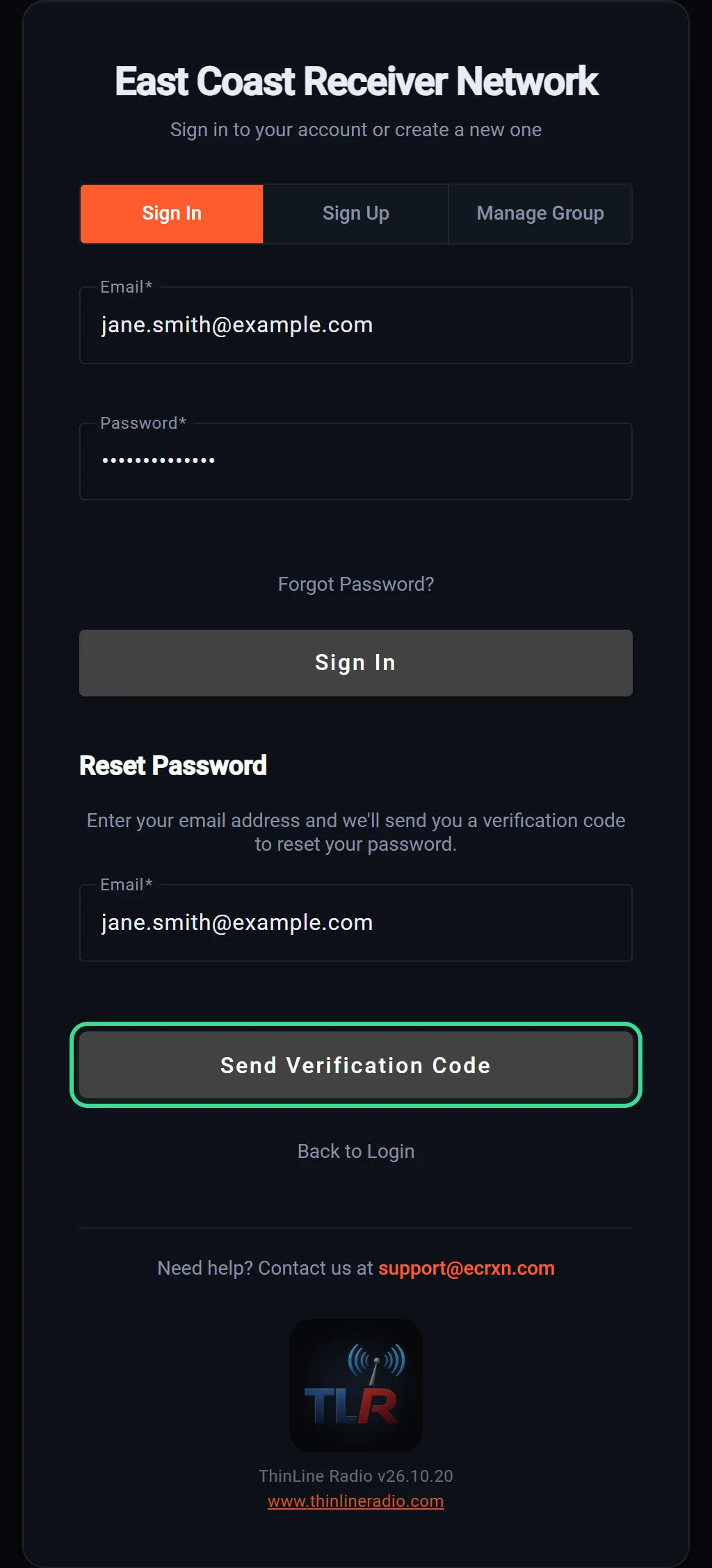
On the Sign In tab, select Forgot Password?. Enter your email and select Send Verification Code.

Check your email for the code, enter it, and choose a new password. Select Back to Login to return to the sign-in form.

Reset Password form with an example email and the Send Verification Code button highlighted
ScreenshotSelect Send Verification Code.

Troubleshooting

The Sign Up button won't work

Make sure every required field (marked *) is filled in, both passwords match, and your password includes a special character such as ! or #. Any problems show in red under the field.

I never got an email from ECRXN

Wait a few minutes, then check your Spam, Junk and Promotions folders. Make sure you typed your email correctly. If it still hasn't arrived, email support@ecrxn.com.

I can sign in but there's no sound

Click or tap anywhere on the page once (browsers block audio until you interact with the page). Make sure the browser tab and your device aren't muted, at least one talkgroup is turned on, and LIVE is active.

What is "Manage Group"?

Manage Group is for group administrators, such as a fire company or agency, to manage their group's settings, users and registration codes. Regular listeners don't need it.

I can't find East Coast Receiver Network in the app

Update the app to the latest version, then search for "East Coast" in the scanner list. If it still doesn't appear, contact support.

A feed or talkgroup seems to be down

Receiver sites sometimes go offline for maintenance. Check our Facebook page for updates, or report it at support.ecrxn.com.

All set? Start listening.

Open the ECRXN scanner, or reach out to our support team if you get stuck.